
If you’ve ever tried turning a logo or image into a vector, you already know how annoying it can be. Blurry edges, weird shapes, and way too much time spent fixing things manually. That’s where Vectorizer AI comes in. It’s built to take that frustration away and give you clean, scalable vectors without the usual headache.
Let’s break it down in a simple, real world way so you can decide if it’s right for you.
What Is Vectorizer AI?
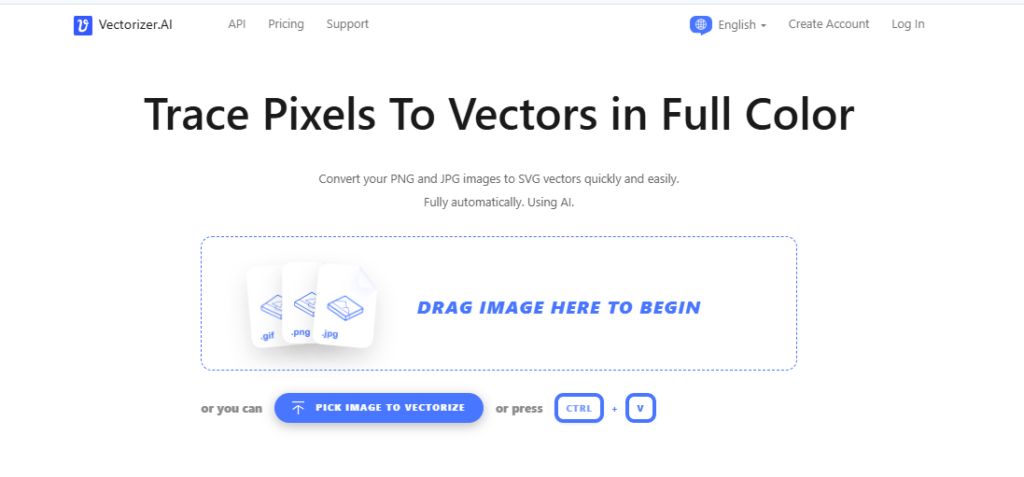
Vectorizer AI is an online tool that converts regular images like PNG or JPG into vector files such as SVG, PDF, EPS, and DXF.
Instead of tracing images by hand or fighting with complicated design software, you just upload your image and let the AI handle everything. It figures out the shapes, lines, and curves automatically and turns them into smooth, editable vectors.
This tool is especially helpful if you:
- Have a logo that needs resizing without losing quality
- Want SVG files for websites or apps
- Need print ready vector files
- Don’t want to learn complex design software
The main problem it solves is time and quality. You get professional-looking vectors fast, without technical skills.
How to Use Vectorizer AI?
Using Vectorizer AI feels straightforward, even if you’ve never done this before. Here’s how it usually goes:
- Upload your image
Drop in a PNG, JPG, or similar file. Logos and illustrations work best.
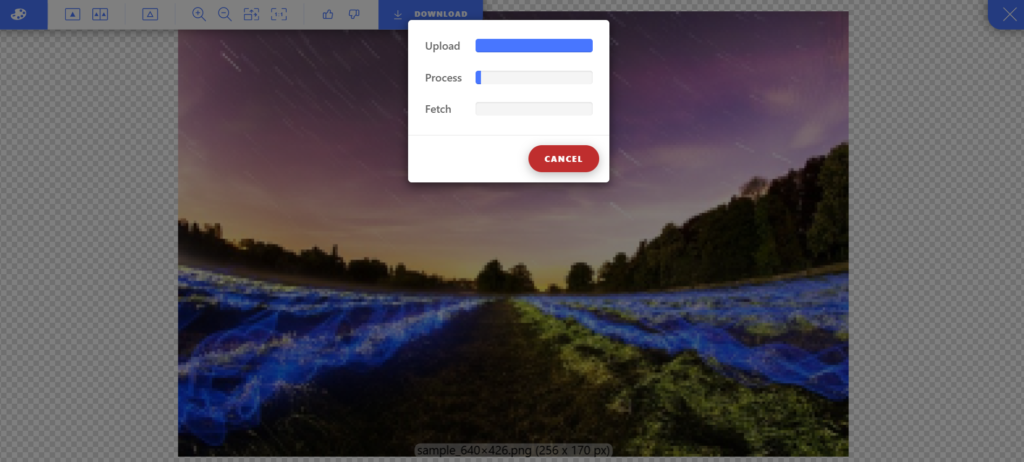
- Let the AI do its thing
The tool automatically analyzes your image, no settings to tweak unless you want to.
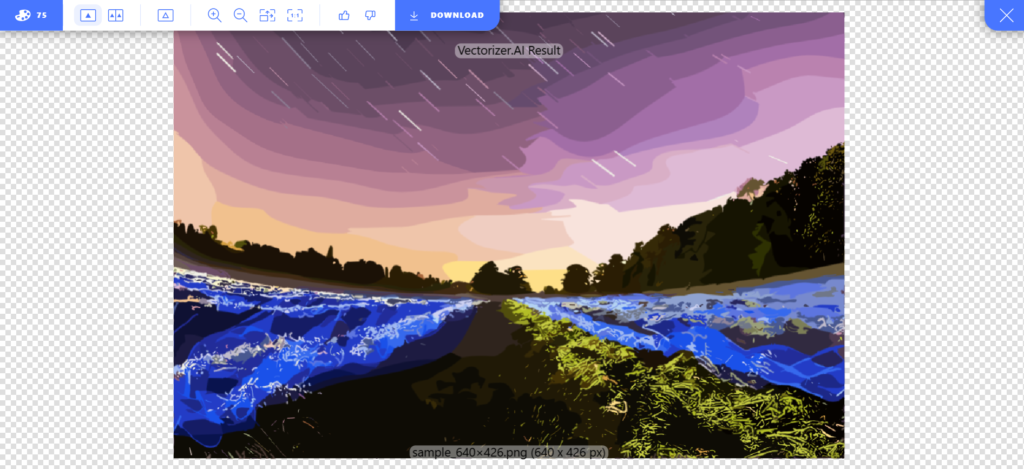
- Preview the vector result
You get a clean preview so you can see exactly how it looks before downloading.
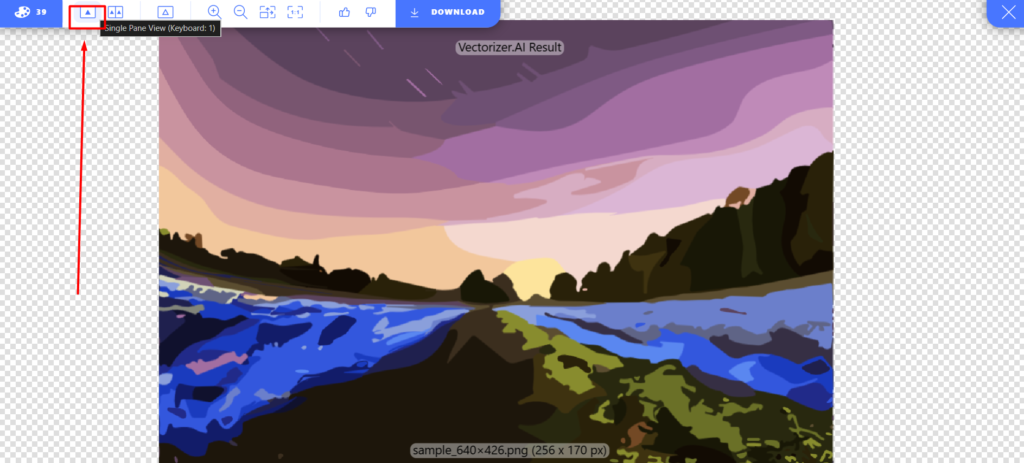
- Choose your format and download
Pick SVG, PDF, EPS, or DXF, then download the final file.
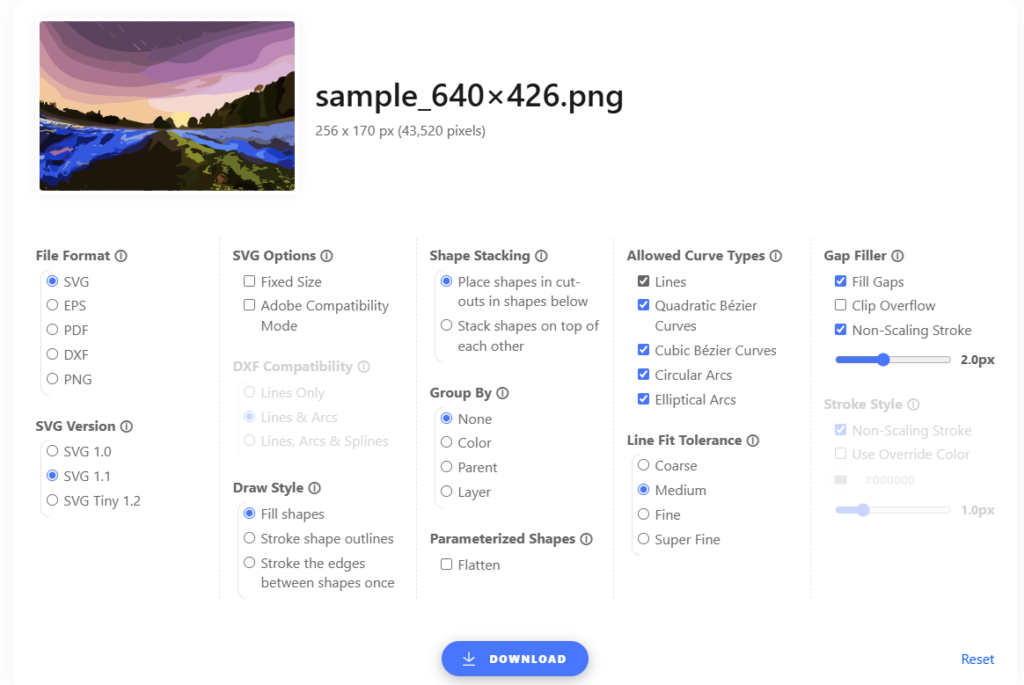
That’s it. No plugins, no software installs, no learning curve. It feels more like uploading a photo than using a design tool.
Key Features of Vectorizer AI
These features make more sense once you’ve actually used the tool.
1. AI-Powered Vector Tracing
You’re not getting basic auto trace here. The AI understands curves, corners, and shapes much better than most free tools. Logos come out smooth instead of jagged.
2. Multiple Export Formats
You can download your vectors in formats that actually matter:
- SVG for web and apps
- PDF & EPS for printing
- DXF for CNC or cutting machines
3. Clean, Editable Paths
The output files aren’t messy. You can open them in Illustrator or Inkscape and edit them easily without fixing hundreds of broken points.
4. Handles Detailed Graphics Well
Flat logos, icons, and illustrations convert especially well. Even more complex artwork keeps its structure instead of turning into a blob.
5. Browser-Based Convenience
You don’t need Illustrator, CorelDRAW, or any heavy software. Everything works directly online.
Vectorizer AI Pricing
Vectorizer AI uses a paid download model. You can preview results for free, but exporting full-quality files requires a paid plan.
Here’s a simple breakdown:
| Plan Name | Price | Key Features | Best For |
| Free Preview | $0 | Preview vector results only | Testing image quality |
| Pay-As-You-Go | Varies per download | High-quality vector exports | Occasional users |
| Subscription Plans | Monthly pricing | Multiple downloads, all formats | Designers & businesses |
If you convert images regularly, a subscription saves you money. If you only need a few vectors, pay-as-you-go works fine.
Pros and Cons of Vectorizer AI
Here’s the honest side, no hype.
Pros
- Very easy to use
- High-quality vector results
- Works great for logos and icons
- No design software required
- Saves a lot of time
Cons
- No fully free downloads
- Photos don’t vectorize as cleanly as logos
- Limited manual controls inside the tool
If you care more about speed and results than tweaking every detail, the pros clearly win.
Alternatives to Vectorizer AI
If you want to compare options, here are a few solid alternatives.
Adobe Illustrator Image Trace: Gives you more manual control, but takes time and experience. Better if you already use Illustrator daily.
Vector Magic: Focuses on high-quality tracing with more adjustment options. It’s powerful but less beginner-friendly.
Inkscape (Free): Completely free and open-source. Works well, but you’ll need patience and manual cleanup.
Final Words
If you want clean vector files without wasting hours fixing mistakes, Vectorizer AI is worth trying. It’s especially useful if you deal with logos, icons, or print graphics and don’t want to mess with complicated tools.
You’re getting speed, accuracy, and professional results in a few clicks. While it’s not completely free, the time you save and the quality you get easily justify the cost.
If vectors are part of your workflow, even occasionally, this tool can make your life a lot easier.

