
If you’ve ever tried editing photos and thought, “Why is this so complicated?”, Pixelcut AI feels like a breath of fresh air. It’s one of those tools that just works. No learning curve. No design headaches. You upload a photo, click a button, and the result looks clean and professional.
Let’s break it down in plain English so you can decide if it’s right for you.
What is Pixelcut AI?
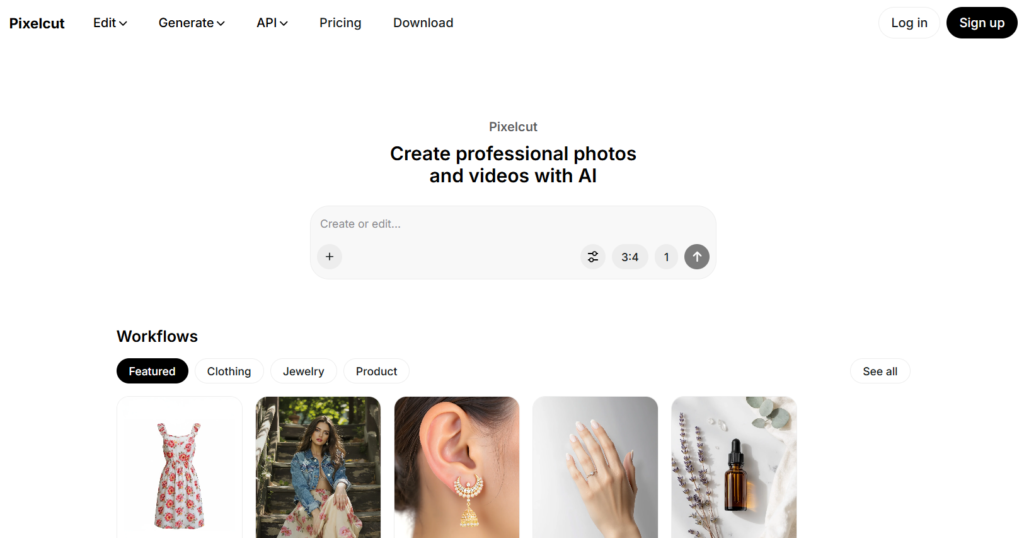
Pixelcut AI is an AI photo editing tool that helps you create polished images fast. You don’t need design skills. You don’t need expensive software. You just need a photo and an idea.
You mainly use Pixelcut to:
- remove backgrounds
- clean up photos
- improve image quality
- create product images
- design social media visuals
It’s built for people like you who want good-looking images without spending hours tweaking settings. Think online sellers, content creators, small business owners, or even someone fixing profile photos.
If Photoshop feels like a spaceship cockpit, Pixelcut feels like a light switch.
How to Use Pixelcut AI?
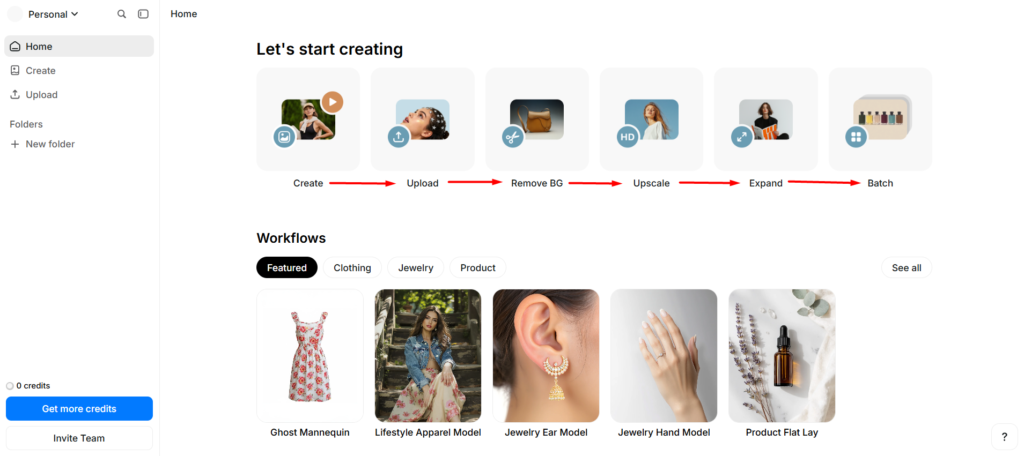
Using Pixelcut is honestly straightforward. Here’s how it usually goes when you open it for the first time:
First, you upload a photo. That’s it. No setup. No confusing menus.
Next, you pick what you want to do. Remove the background. Sharpen the image. Erase something in the background. Add a new scene.
Then you let the AI handle the heavy lifting. Most edits take just a few seconds.
After that, you tweak things if needed. Or you don’t. Many times, the first result is already good enough.
Finally, you download your image and use it wherever you need, your website, Instagram, Etsy store, or ads.
It feels more like using a phone app than “editing software,” which is exactly why people like it.
Key Features of Pixelcut AI
Here are the features you’ll actually use, explained like a real person would explain them.
Background Remover
This is Pixelcut’s biggest strength. You upload a photo, and the background disappears cleanly. No rough edges. No weird cutouts.
If you sell products online, this alone saves you hours. It’s the difference between “DIY photo” and “store-ready image.”
Image Upscaler
Got a blurry or low-quality photo? Pixelcut can sharpen it and increase the resolution.
It’s like cleaning a foggy window. The photo suddenly looks clearer and more usable, especially for product listings or posts.
Magic Eraser
Ever take a good photo but notice a random object ruining it? A cable, shadow, or stranger in the background?
You paint over it. The AI removes it. The photo looks natural again.
AI Backgrounds
Instead of finding the perfect background photo, you can generate one. Studio style. Lifestyle scene. Clean colors.
This is great when you want your images to look consistent without setting up an actual photoshoot.
Templates and Quick Designs
If you post on social media, these templates save time. You drop your image in, adjust text if needed, and you’re done.
No staring at a blank canvas, wondering where to start.
Pricing
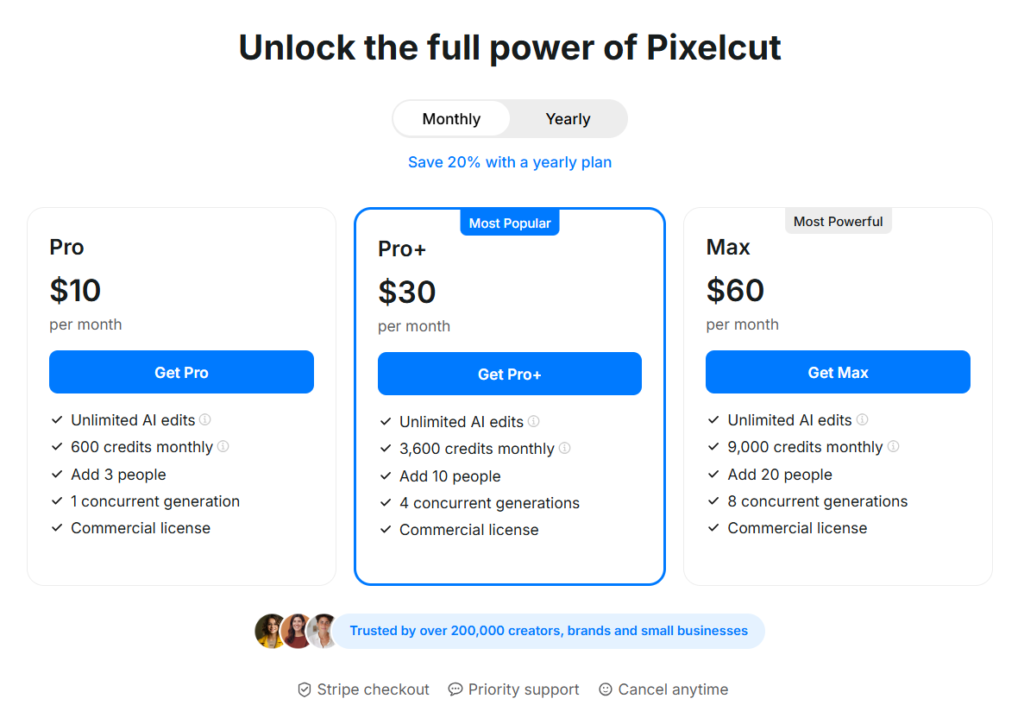
Here’s a simple breakdown so you don’t have to guess.
| Plan | Price | What You Get | Best For |
| Free | $0 | Basic tools, limited use | Trying it out |
| Pro | Around $10/month | Unlimited edits, no watermark | Creators and small businesses |
| Pro+ | Around $30/month | More credits, faster output | Heavy users and teams |
The free plan is good for testing. If you use it regularly, the Pro plan feels like the sweet spot.
Pros and Cons of Pixelcut AI
Nothing’s perfect. Here’s the honest take.
Pros
- Very easy to use
- Fast results
- Great background removal
- Works well on both mobile and desktop
- No design experience needed
Cons
- Free plan is limited
- Paid plans can feel pricey for casual users
- Not meant for complex graphic design projects
- Some advanced edits still need manual tools elsewhere
If you expect it to replace professional design software, you’ll be disappointed. If you want fast, clean visuals, you’ll probably love it.
Alternatives to Pixelcut AI
If Pixelcut doesn’t fully click with you, here are some solid alternatives:
- Canva – Better for full designs and presentations, but slower for background removal
- PhotoRoom – Strong competitor for product photos and background edits
- Remove.bg – Excellent for background removal only, not much else
- Picsart – More creative filters and effects, but less focused on clean product images
- Pixlr – More control, but also more complexity
Each tool shines in different situations. Pixelcut focuses on speed and simplicity.
Final Words
If you want clean, professional images without stress, Pixelcut AI is a smart choice. It’s not trying to be everything. It just helps you get good results fast.
You’ll enjoy it most if you:
- sell products online
- create social media content
- hate complicated editing tools
- want results without learning design
Try the free version first. If it fits your workflow, upgrading makes sense. Pixelcut doesn’t overpromise, and that’s what makes it useful.

